Microphone setup: Difference between revisions
Jump to navigation
Jump to search
No edit summary |
No edit summary |
||
| (8 intermediate revisions by 3 users not shown) | |||
| Line 1: | Line 1: | ||
[[Category:Instructions]] | |||
Before using your micorphone user must choose what kind of microphone is going to be used. | Before using your micorphone user must choose what kind of microphone is going to be used. | ||
| Line 5: | Line 6: | ||
# Desktop microphone - We recommend to use the Do not listen while you speak feature with the push to talk feature. | # Desktop microphone - We recommend to use the Do not listen while you speak feature with the push to talk feature. | ||
: [[File:Setmic.jpg]] | |||
[[File: | |||
Continue with the microphone setup wizard (you can run this any time you want later from the control panel) and read the text: | Continue with the microphone setup wizard (you can run this any time you want later from the control panel) and read the text: | ||
: "Peter dictates to his computer." | : "Peter dictates to his computer." | ||
: The next button will be activated, continue. | : The next button will be activated, continue. | ||
: [[File:SpeechConfig.jpg]] | |||
To activate the Listen while you speak feature: | To activate the Listen while you speak feature: | ||
: Just say "Listen while you speak" | : Just say "Listen while you speak" | ||
Check the Default section on Customize Window cause you can edit this command. | |||
To activate the Listen while you speak feature: | To activate the Listen while you speak feature: | ||
: Just say "Do not listen while you speak" | : Just say "Do not listen while you speak" | ||
Check the Default section on Customize Window cause you can edit this command. | |||
To activate the push to talk feature: | To activate the push to talk feature: | ||
Latest revision as of 02:42, 20 July 2016
Before using your micorphone user must choose what kind of microphone is going to be used.
These are the options:
- Headset microphone - We recommend to use the Listen while you speak feature.
- Desktop microphone - We recommend to use the Do not listen while you speak feature with the push to talk feature.

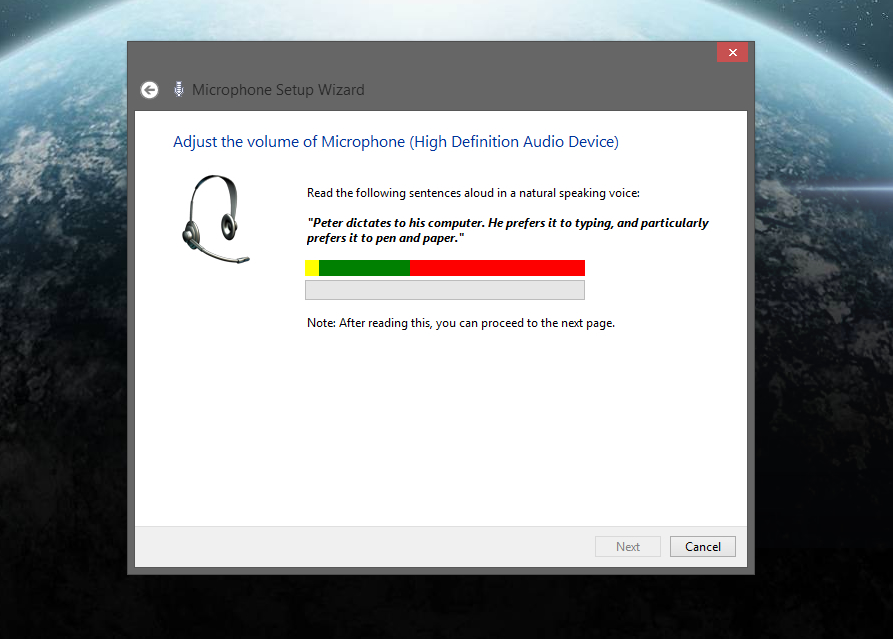
Continue with the microphone setup wizard (you can run this any time you want later from the control panel) and read the text:
- "Peter dictates to his computer."
- The next button will be activated, continue.

To activate the Listen while you speak feature:
- Just say "Listen while you speak"
Check the Default section on Customize Window cause you can edit this command.
To activate the Listen while you speak feature:
- Just say "Do not listen while you speak"
Check the Default section on Customize Window cause you can edit this command.
To activate the push to talk feature:
- Go to the Settings window and go right until you see the Speech recognition options.
- Under language you will see "Push to talk".
- To use push to talk hold the right control key located under the right shift on your keyboard.
- You will hear a sound effect. Say a command and release the key.